Do You Need a Heat Sink for NVMe?
- Yongxing
- 23 Mar ,2026
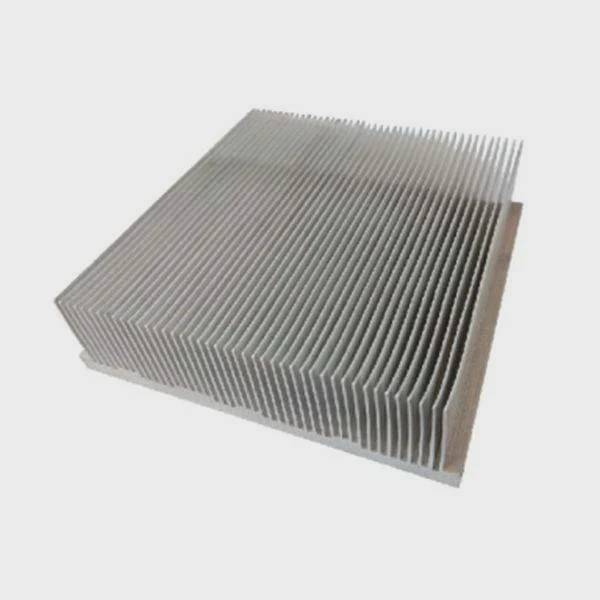
An NVMe SSD can look small and simple. But when heat builds up fast, speed drops, files slow down, and many buyers only notice the problem after the drive is already under stress.
Yes, many NVMe SSDs benefit from a heat sink, especially in fast PCIe 4.0 and PCIe 5.0 setups, gaming systems, workstations, and heavy data workloads. A heat sink helps control temperature, reduce throttling, and keep performance more stable during long or repeated transfers.
That is why this topic matters more than many people expect. A lot of users only ask about cooling after they see high SSD temperatures in monitoring software, random speed loss, or unstable performance during large tasks. The real question is not only whether a heat sink exists, but when it actually makes a clear difference.
Why Do NVMe SSDs Run Hotter Than SATA Drives?
Heat in an SSD is easy to ignore because there are no fans, no moving parts, and no loud warning signs. Still, NVMe drives often run much hotter than SATA drives because they move more data in less time and pack more power into a much smaller space.
NVMe SSDs run hotter than SATA drives because they use the PCIe interface, which allows much higher bandwidth and faster data transfer. Higher speed means more controller activity, more power draw, and more heat concentrated in a compact M.2 form factor.
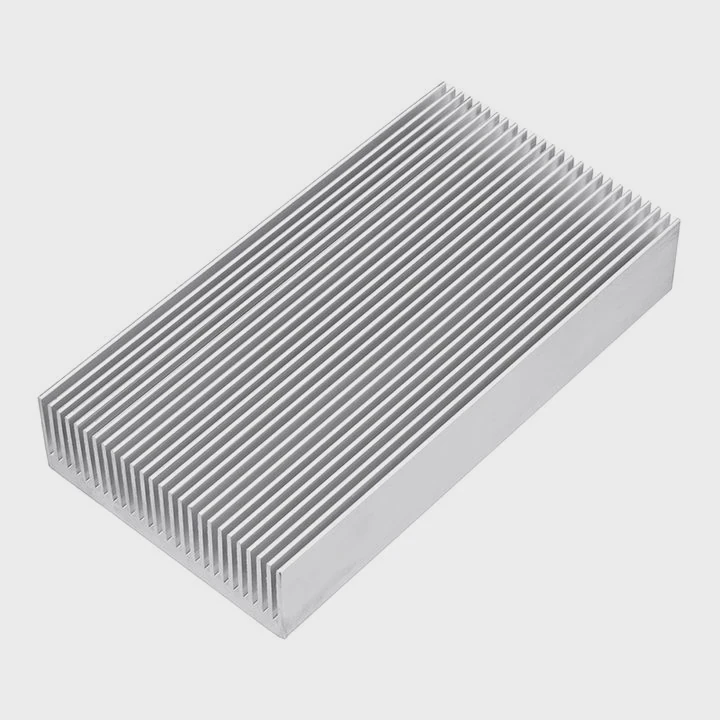
Many buyers focus on read and write speed first. That makes sense. Speed is easy to compare on a spec sheet. But thermal behavior often tells the real story in daily use. A SATA SSD usually works through a slower interface. Its controller does less work per second, so heat builds more slowly. An NVMe SSD, by contrast, can process very large amounts of data very fast. That work happens inside a tiny board, often with very little metal mass around it.
The Interface Makes a Big Difference
SATA was built for lower bandwidth. NVMe was built for speed and low latency. That design gives NVMe a huge advantage in modern systems, but it also pushes the controller harder.
| Drive Type | Typical Interface | Speed Level | Heat Tendency | Common Form |
|---|---|---|---|---|
| SATA SSD | SATA III | Lower | Lower to moderate | 2.5-inch or M.2 SATA |
| NVMe SSD | PCIe x4 | Much higher | Moderate to high | M.2 2280 |
The controller is often the hottest part of the NVMe drive. NAND flash does create heat too, but the controller usually takes the main thermal load because it handles queue management, data flow, error correction, and mapping work at high speed.
Small Size Creates a Thermal Problem
An M.2 NVMe SSD is compact, which is great for laptops, mini PCs, and dense desktop builds. But small size also means limited surface area for heat dissipation. In plain terms, more heat stays trapped near the components unless airflow or a heat sink helps move it away.
This problem gets worse in systems with poor airflow. A graphics card can dump extra heat into the same area. A motherboard shroud may look clean, but design alone does not guarantee real cooling. In some builds, the SSD sits close to the GPU, chipset, or CPU socket. That makes local temperature even higher.
Why Fast Generations Run Even Hotter
Not all NVMe drives behave the same way. Entry-level PCIe 3.0 models may run warm but remain manageable without much cooling in light use. PCIe 4.0 drives often run hotter. PCIe 5.0 models can run much hotter still, especially under sustained transfer loads. As speed rises, thermal control becomes less optional and more practical.
From what I have seen in thermal projects, users often think the SSD itself is weak when performance drops. In many cases, the real cause is simple: the drive got too hot, so it protected itself by lowering speed.
How Does a Heat Sink Stabilize NVMe Performance?
Many people think a heat sink only makes a drive cooler on paper. The more useful point is performance stability. The goal is not just lower temperature. The goal is steady speed under real work.
A heat sink stabilizes NVMe performance by absorbing and spreading heat away from the SSD controller and memory chips. This delays or reduces thermal throttling, so the drive can maintain higher speeds for longer periods during demanding tasks.
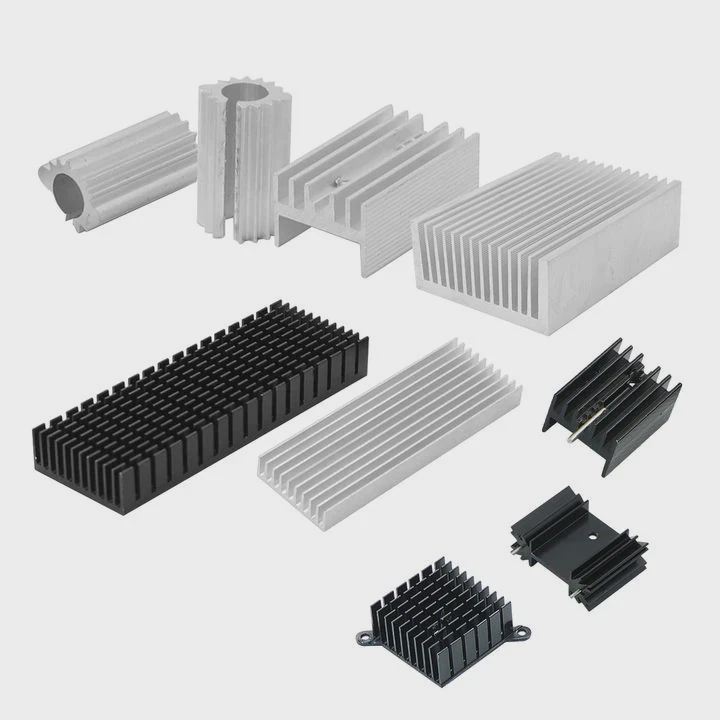
Without thermal control, many NVMe drives hit a temperature point where the firmware cuts performance to protect the hardware. This is called thermal throttling. When that happens, the advertised top speed no longer matters much. A drive that starts fast may slow down sharply during a large file copy, long game install, 4K video cache task, or heavy project export.
What the Heat Sink Actually Does
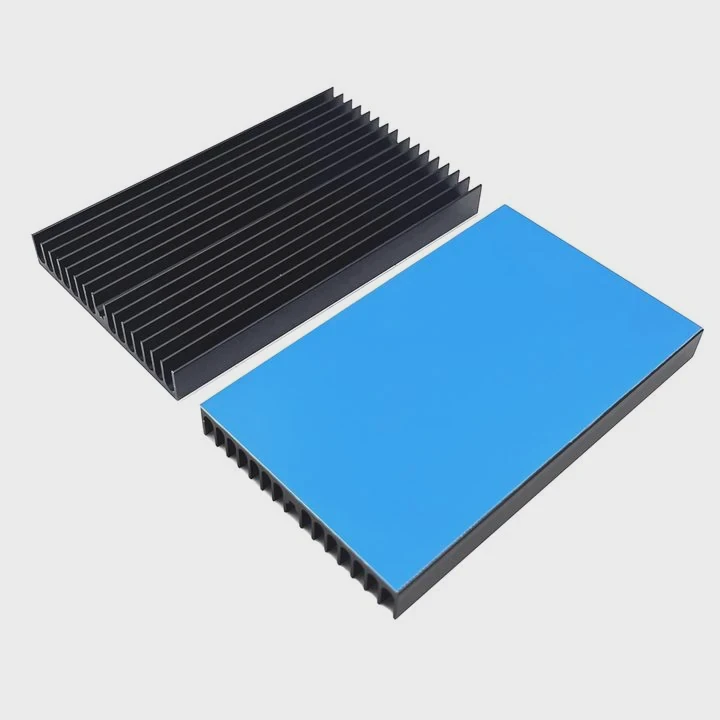
A heat sink does not remove heat by magic. It works through contact and surface area. A thermal pad sits between the SSD components and the metal heat sink. Heat moves from the hotter chip into the pad, then into the metal body. The heat sink spreads that thermal load across a larger area, which makes it easier for airflow to carry heat away.
This basic process helps in three ways:
1. It slows down temperature rise
The SSD does not heat up as quickly during short bursts.
2. It lowers peak temperature
The highest temperature during long tasks is often lower.
3. It improves consistency
Speed remains more stable during repeated or sustained workloads.
That third point matters a lot in business and industrial use. Stable output is often more valuable than a short burst number from a benchmark screenshot.
A Heat Sink Helps Even When Speed Is Already High
Some users say, “My SSD is already fast. Why add more cooling?” That question misses the real issue. The problem is not whether the drive can hit peak speed once. The problem is whether it can keep that speed when work continues.
| Condition | Without Heat Sink | With Heat Sink |
|---|---|---|
| Short file copy | Often acceptable | Acceptable |
| Long sustained write | Speed may fall after heat rises | More stable speed |
| Repeated heavy loads | More likely to throttle | Lower throttling risk |
| Warm case environment | Heat accumulates faster | Better thermal spread |
The Controller Needs Protection Most
In many NVMe designs, the controller chip is the main source of thermal stress. When the controller overheats, response time can change, sustained write speed can drop, and user experience becomes less predictable. A heat sink protects that control point first. That is why many motherboard heat spreaders line up carefully with the controller area.
Still, a heat sink is not a total answer by itself. Good airflow also matters. A thick heat sink inside a closed, hot case will not perform as well as a decent heat sink in a case with clear front-to-back airflow. So the best result usually comes from both parts working together: direct thermal contact and system-level air movement.
In my view, that is the most practical way to judge NVMe cooling. It is not about making the drive look advanced. It is about keeping performance from falling apart when the workload stops being light.
Where Is the NVMe Heat Sink Installed?
A lot of new users buy a heat sink and then stop because they are not fully sure where it should go. The good news is that the placement is simple once the SSD layout is clear.
An NVMe heat sink is installed directly on top of the M.2 SSD, usually over the controller and NAND area, with a thermal pad between the chips and the metal sink. It may come built into the motherboard or as a separate add-on piece.
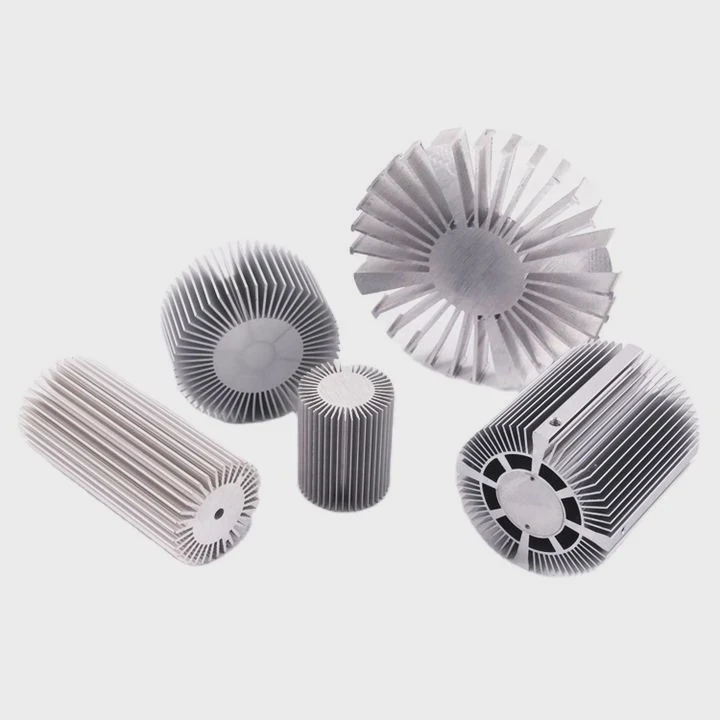
The most common NVMe SSD form factor is M.2 2280. That means the board is narrow and usually mounted flat against the motherboard. The heat sink sits over that module, not somewhere else in the case. In desktop systems, the motherboard may already include an M.2 cover or heat spreader. In that setup, the factory part often acts as the SSD heat sink.
Common Installation Locations
There are three common cases:
Motherboard-integrated M.2 heat sink
Many mid-range and high-end motherboards include a metal cover over the M.2 slot. This is the easiest setup. The user installs the SSD into the slot, places the thermal pad correctly, and screws the cover back on.
Aftermarket NVMe heat sink
This type is bought separately. It usually includes two metal halves or one top plate, plus a thermal pad and small clips or bands. It mounts directly onto the SSD before or after the SSD is installed, depending on the design.
Laptop or compact device thermal plate
In laptops, cooling space is limited. Some devices use a thin copper or graphite spreader instead of a large ribbed heat sink. The position is still over the SSD area, but the design must fit the small internal space.
Key Installation Points
A heat sink only works well when it makes proper contact.
- The thermal pad must touch the hot components.
- The pad should not be too thick or too thin.
- The controller area should be covered.
- The heat sink should not press unevenly.
- The assembly should not block other parts.
A common mistake is leaving the protective plastic film on the thermal pad. Another mistake is using a heat sink that is too tall for the space, especially under a GPU or inside a laptop shell. Some double-sided SSDs also need extra care because chips may exist on both sides of the PCB.
Quick Placement Guide
| System Type | Heat Sink Position | Notes |
|---|---|---|
| Desktop motherboard with M.2 shield | On top of installed SSD in M.2 slot | Most common setup |
| Desktop with aftermarket cooler | Clamped directly to SSD body | Check GPU clearance |
| Laptop | Thin spreader over SSD area | Height limit is critical |
| Mini PC or embedded system | Very close-fit thermal plate or case-linked sink | Airflow is often limited |
Why Correct Placement Matters
A poorly installed heat sink can look fine and still perform badly. If the controller does not touch the pad well, heat stays trapped in the chip. If the sink only contacts the label or air gaps, the thermal path is weak. So installation quality matters almost as much as the heat sink itself.
When I explain this to buyers, I keep it simple: the heat sink should sit where the heat starts, and it should connect tightly enough to move that heat into metal. Once that happens, the system has a much better chance to hold stable SSD performance.
Which NVMe Workloads Require Better Cooling?
Not every NVMe user needs an aggressive cooling setup. That is why this question matters. The need for a heat sink depends less on the SSD label and more on what the drive actually does every day.
NVMe workloads that require better cooling include sustained file transfers, 4K or 8K video editing, gaming installs and updates, content creation, data logging, virtualization, AI data processing, and industrial or server-like tasks that keep the drive active for long periods.
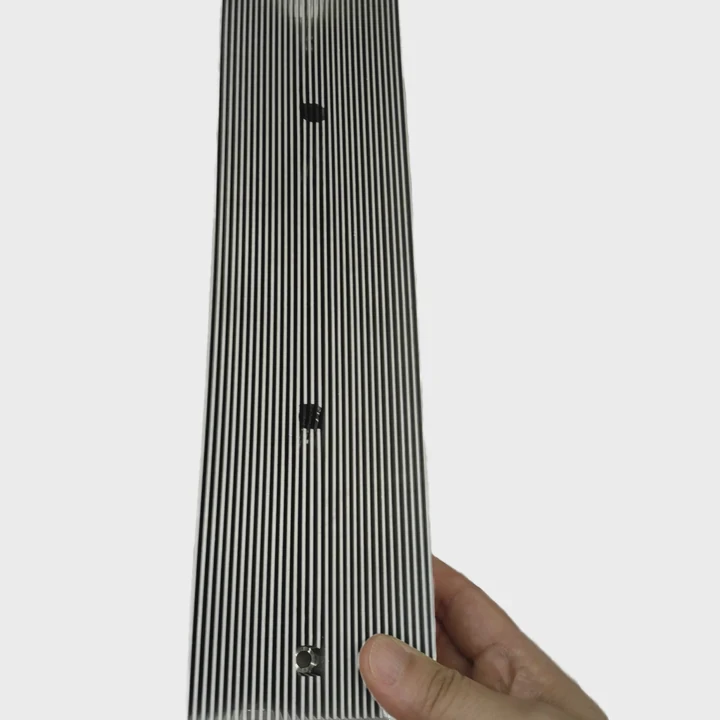
A basic office PC may rarely stress the SSD long enough to create a serious thermal event. Booting the system, opening documents, browsing the web, and saving normal files usually create short bursts, not heavy sustained load. In that kind of use, a heat sink is still helpful, but the need is less urgent.
The picture changes in power-user and professional systems.
Workloads That Push SSD Temperature Up
Large sustained writes
This is one of the biggest triggers. Examples include copying huge media folders, imaging drives, backing up large data sets, and moving raw project files. Sustained writes keep the controller active and can heat the SSD quickly.
Video editing and media cache tasks
High-resolution editing creates repeated reads and writes. Proxy generation, timeline cache, and export work can keep the drive busy for long sessions.
Gaming with large installs and updates
Modern games are huge. Downloading, unpacking, patching, and moving game files can create heavy bursts. Fast gaming systems also tend to use hot GPUs, which raise the local case temperature around the SSD.
Workstation and compute loads
CAD, simulation, code compilation, virtual machines, and AI data handling can all create repeated storage stress. In these systems, stable speed matters more than short benchmark numbers.
Industrial and embedded use
This area is often overlooked. Some equipment writes logs, sensor data, images, or control records all day. These tasks may not look dramatic, but long active cycles in warm environments can create real thermal pressure.
Matching Cooling Level to Workload
A simple way to think about it is this: the longer the SSD stays busy, the more useful the heat sink becomes.
- Light office use: often optional
- Gaming and creator use: strongly recommended
- PCIe 4.0 heavy transfer use: recommended
- PCIe 5.0 high-performance use: often necessary
- Warm enclosure or poor airflow: even more important
The workload also combines with the environment. A moderate SSD in a hot, crowded case may need more cooling than a faster SSD in a well-ventilated system.
One lesson stands out here. Buyers often ask whether a heat sink is only for extreme users. In real life, many normal users now run tasks that were once considered heavy. Game libraries are larger. Video files are bigger. Software tools cache more data. That means SSD cooling is no longer a niche issue. It is becoming a normal design choice in many modern systems.
Conclusion
A heat sink is not mandatory for every NVMe SSD, but in many real systems it is a smart and low-cost way to protect stable performance. When heat rises, speed drops. Good cooling helps the drive stay fast, safe, and consistent under real work.