How to Install Heat Sink on SSD?
- Yongxing
- 12 Jun ,2026
Opening paragraph:
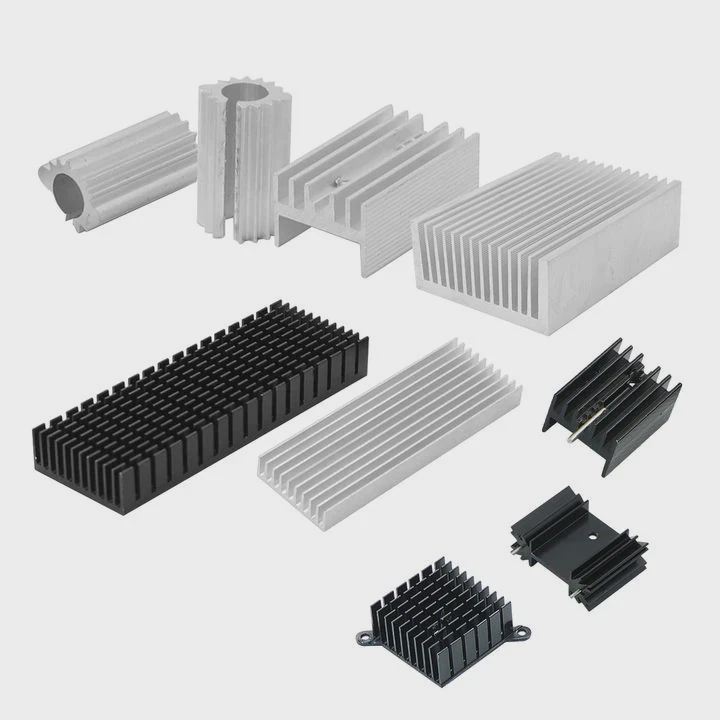
SSDs can overheat during heavy data transfer, slowing down performance. A heat sink helps prevent this and keeps speeds stable.
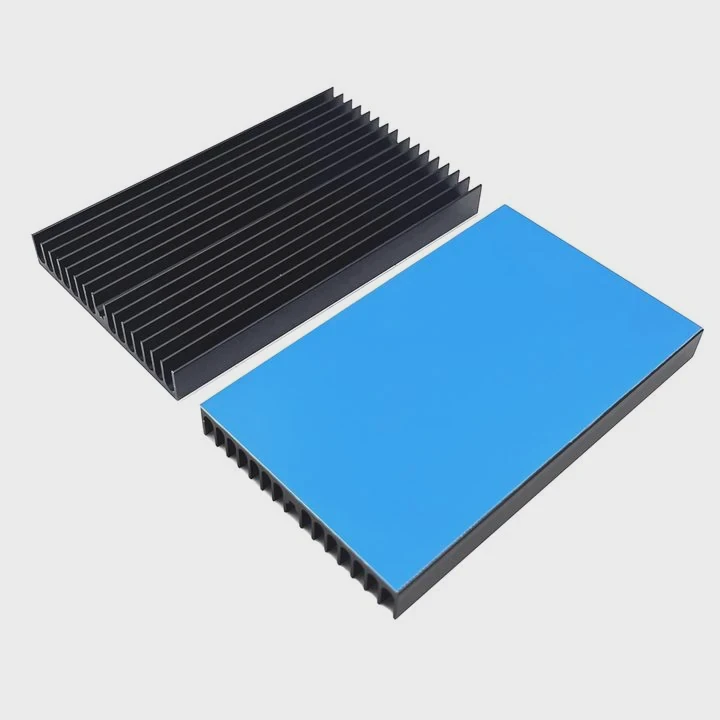
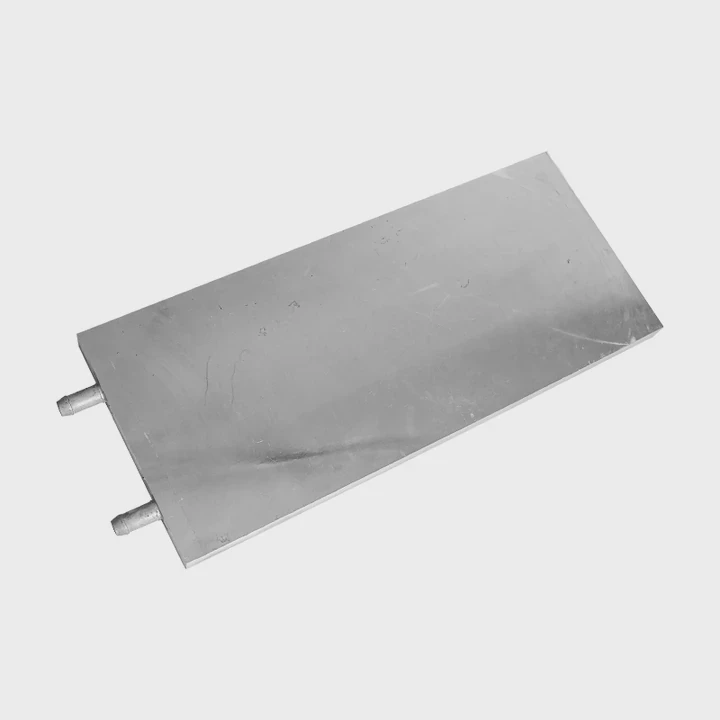
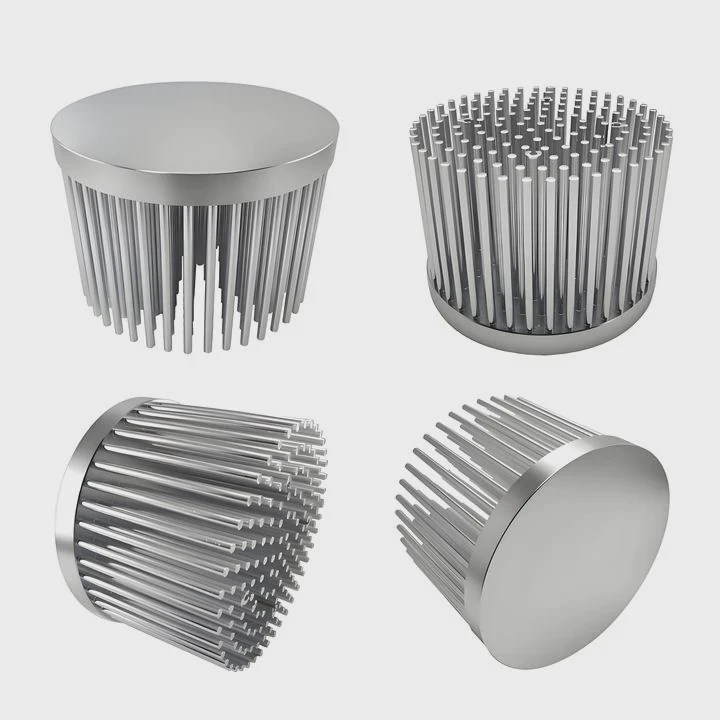
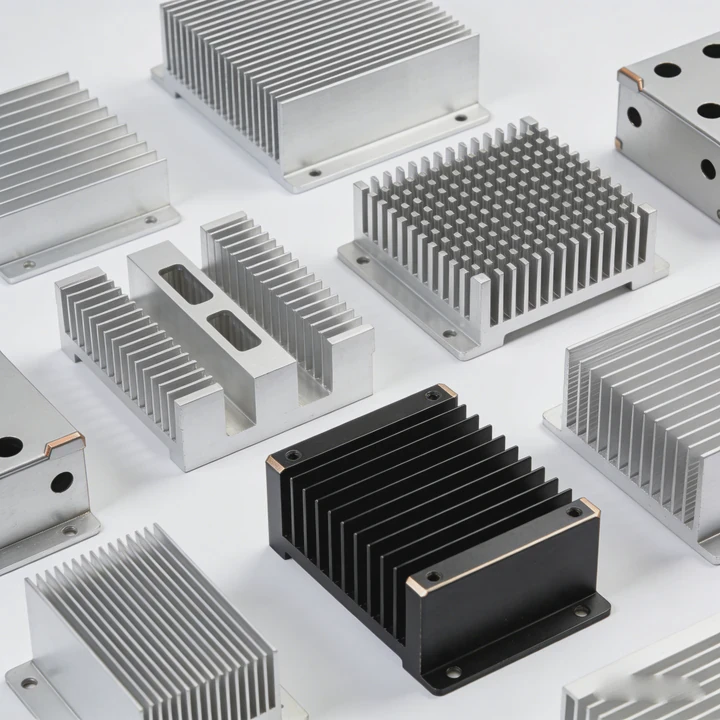
Installing a heat sink on an SSD transfers heat away from the chips, ensuring better thermal performance and avoiding throttling during prolonged use.
Proper installation ensures longevity and maintains peak SSD performance.
What tools are needed for SSD heat sink installation?
Opening paragraph:
Many users hesitate to install heat sinks because they aren’t sure what tools are required.
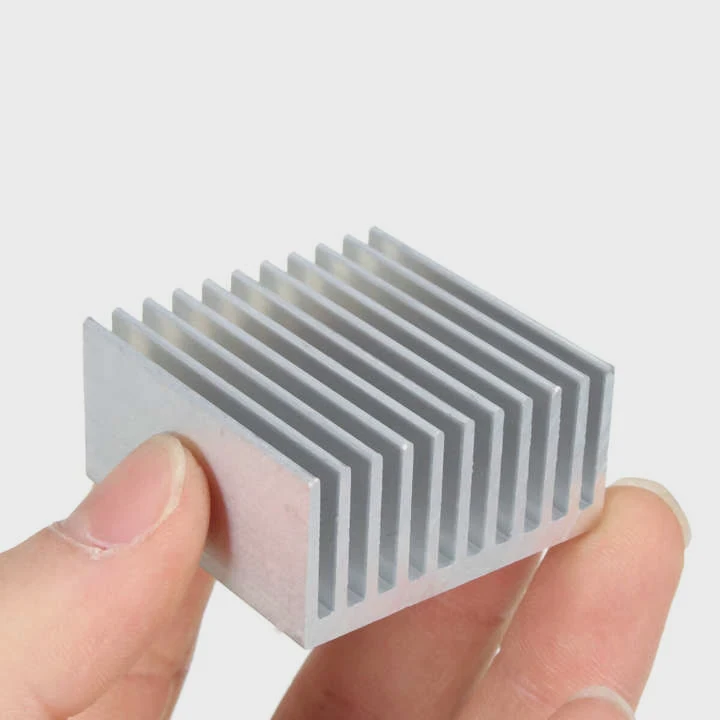
The main tools needed are simple: a screwdriver, thermal pads or paste, and optionally an anti-static wrist strap to prevent static damage.
Tool Checklist
- Screwdriver - Usually Phillips #0 or #1 for M.2 SSD screws.
- Thermal pad or paste - Helps heat transfer between SSD chips and heat sink.
- Anti-static wrist strap - Protects sensitive components from electrostatic discharge.
- Cleaning cloth or isopropyl alcohol - Cleans surface before installation.
Step-by-Step Preparation
- Turn off the computer and unplug it.
- Ground yourself to prevent static electricity.
- Clean SSD surface for proper adhesion.
- Prepare screws and heat sink components.
Tips
- Keep screws organized to avoid loss.
- Verify heat sink compatibility with your SSD model.
- Avoid touching the gold connector to prevent damage.
Proper preparation makes installation smooth and prevents mistakes.
Why ensure proper contact with SSD chips?
Opening paragraph:
Even a well-mounted heat sink is useless if it does not touch the SSD chips correctly.
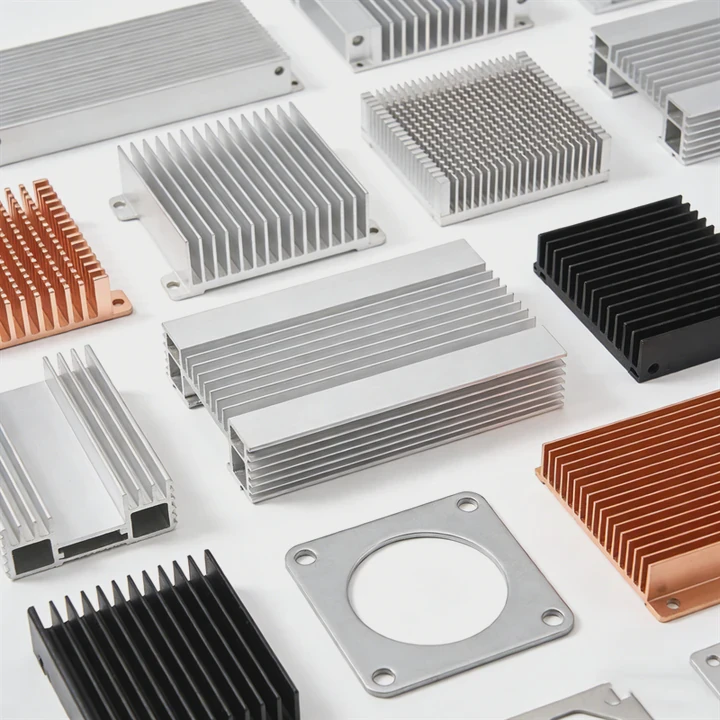
Proper contact ensures that heat is efficiently transferred from the SSD chips to the heat sink, preventing overheating and throttling.
Thermal Conductivity
Heat transfer relies on direct contact. Thermal pads or paste fill gaps and improve heat conduction. Poor contact traps heat, reducing SSD performance.
Common Issues
- Misaligned heat sink leaves chips partially exposed.
- Dust or debris between heat sink and chip reduces conductivity.
- Uneven pressure can damage the SSD or cause warping.
Checkpoints for Installation
| Check | Reason |
|---|---|
| SSD surface clean | Removes dust and debris |
| Thermal pad aligned | Ensures full chip coverage |
| Screws tightened evenly | Maintains proper pressure |
| Heat sink flush | Maximize contact area |
Proper contact ensures the heat sink performs effectively under heavy read/write loads.
Where should the heat sink be placed on SSD?
Opening paragraph:
Placement matters because the heat sink needs to cover all high-heat areas for optimal performance.
The heat sink should be installed directly on the SSD chips, including NAND and controller areas, where most heat is generated.
Placement Guidelines
- Identify the NAND chips and controller on the SSD PCB.
- Place thermal pads or paste on each chip.
- Align the heat sink carefully, making sure it covers all major components.
- Secure with screws or clips provided by the manufacturer.
Diagram of SSD Heat Path
| Component | Heat Role | Heat Sink Contact |
|---|---|---|
| Controller | High | Direct thermal pad/paste contact |
| NAND chips | Medium | Covered by thermal pad |
| DRAM (if present) | Low | Optional coverage |
| Heat sink | All | Spread heat to air or case airflow |
Airflow Considerations
Even with a heat sink, SSD cooling benefits from proper airflow inside the case. Ensure nearby components don’t block airflow over the heat sink.
Practical Advice
- Use manufacturer-provided hardware for mounting.
- Verify clearance with other components, especially in compact cases.
- Avoid overtightening screws, which can damage the PCB.
Which SSD types support heat sinks?
Opening paragraph:
Not all SSDs are designed for heat sinks. Choosing compatible models ensures safe installation.
M.2 NVMe SSDs and some high-performance SATA SSDs often support heat sinks, while standard 2.5-inch SSDs usually do not require additional cooling.
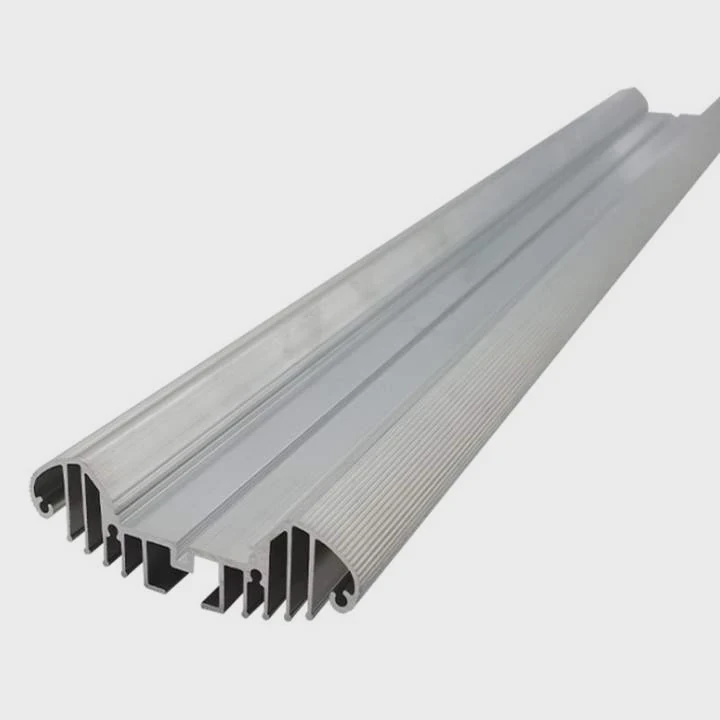
M.2 NVMe SSDs
- Small, compact form factor.
- High-speed read/write operations generate significant heat.
- Often come with pre-installed heat sinks or compatible kits.
High-Performance SATA SSDs
- Larger but still generate heat during heavy use.
- Some models include optional heat sink accessories.
Comparison Table
| SSD Type | Heat Sink Support | Reason |
|---|---|---|
| M.2 NVMe | Yes | High heat from compact, fast chips |
| 2.5-inch SATA | Usually no | Lower heat, larger PCB for passive cooling |
| PCIe add-in | Sometimes | High-speed interface generates heat |
| Enterprise SSDs | Yes | Heavy load in servers requires thermal management |
Considerations Before Purchase
- Check manufacturer documentation for heat sink compatibility.
- Avoid DIY heat sinks on unsupported models; it can block connectors or airflow.
- Choose low-profile heat sinks for tight spaces.
Proper selection and placement maximize SSD performance and extend drive lifespan.
Conclusion
Installing a heat sink on an SSD improves thermal performance and prevents throttling. Using the right tools, ensuring proper contact, and choosing compatible SSD types ensures stable, long-lasting operation.