How to Clean Heat Sink PC?
- Yongxing
- 10 Jun ,2026
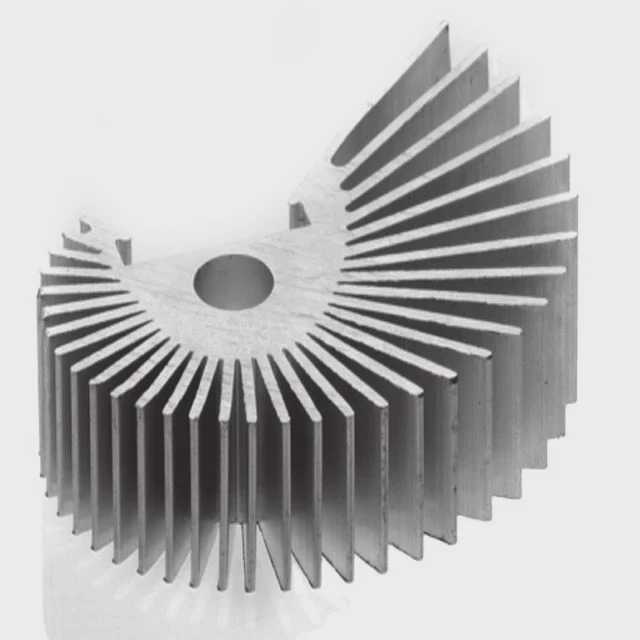
PC heat sinks collect dust over time, reducing cooling efficiency. How can they be cleaned safely and effectively?
Cleaning a heat sink restores airflow, lowers temperatures, and improves performance. Regular maintenance prevents overheating and extends component lifespan.
Following the right steps and using proper tools ensures a clean and efficient cooling system.
What steps clean a PC heat sink effectively?
To clean a PC heat sink, first power down the computer and unplug it. Remove the heat sink carefully, then clean fins and fans with compressed air or brushes.
Cleaning restores thermal efficiency and prevents thermal throttling on CPUs and GPUs.
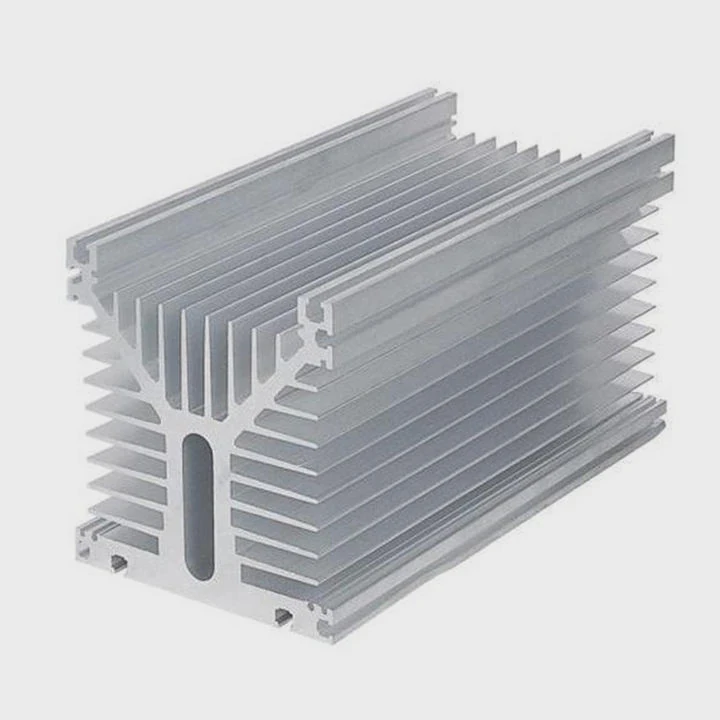
Step-by-step process
- Power down and unplug - Ensure safety before opening the case.
- Remove heat sink - Detach screws or clips gently.
- Blow dust away - Use compressed air to remove dust from fins and fans.
- Brush stubborn dust - Use a soft brush for stuck debris.
- Clean thermal paste - Use isopropyl alcohol to remove old paste from CPU/GPU.
- Reapply thermal paste - Apply new paste before reinstalling heat sink.
- Reassemble and test - Ensure fans are connected and check temperatures.
Cleaning procedure table
| Step | Purpose | Tip |
|---|---|---|
| Power down & unplug | Safety | Wait a few minutes for components to cool |
| Remove heat sink | Access fins & base | Follow manufacturer guide |
| Compressed air | Remove loose dust | Hold can upright to prevent moisture |
| Soft brush | Clean stubborn dust | Use gentle strokes |
| Isopropyl alcohol | Remove old thermal paste | Use lint-free cloth |
| Reapply thermal paste | Ensure proper heat transfer | Thin, even layer |
| Reassemble & test | Verify operation and temperature | Monitor system after boot |
Following these steps helps maintain optimal thermal performance.
Why regular cleaning improves performance?
Dust and debris reduce airflow, causing higher temperatures. High temperatures trigger thermal throttling, lowering CPU and GPU speeds.
Regular cleaning keeps the heat sink effective, reducing temperature and improving overall system stability.
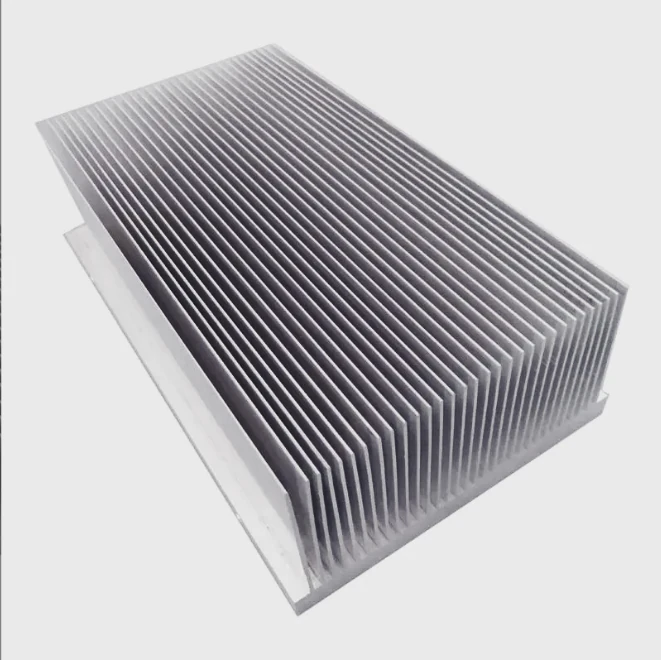
Benefits of regular cleaning
- Lower operating temperature: Fans and heat sinks work efficiently.
- Prevent thermal throttling: Sustains CPU/GPU performance.
- Extend component lifespan: Less heat reduces wear on electronics.
- Quieter system: Clean fans rotate smoothly without extra noise.
Performance impact table
| Condition | CPU Temp (°C) | GPU Temp (°C) | Notes |
|---|---|---|---|
| Dusty heat sink | 70-85 | 75-90 | Throttling likely |
| Clean heat sink | 40-55 | 45-65 | Full performance |
| Routine cleaning | Stable | Stable | Noise reduction, reliability |
Maintaining clean heat sinks ensures consistent performance and prevents overheating-related slowdowns.
Where does dust accumulate in PC heat sinks?
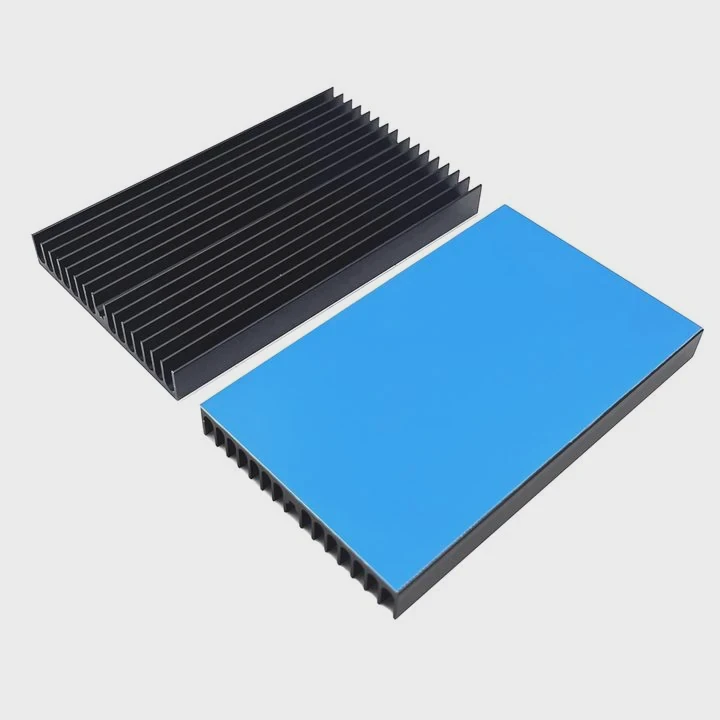
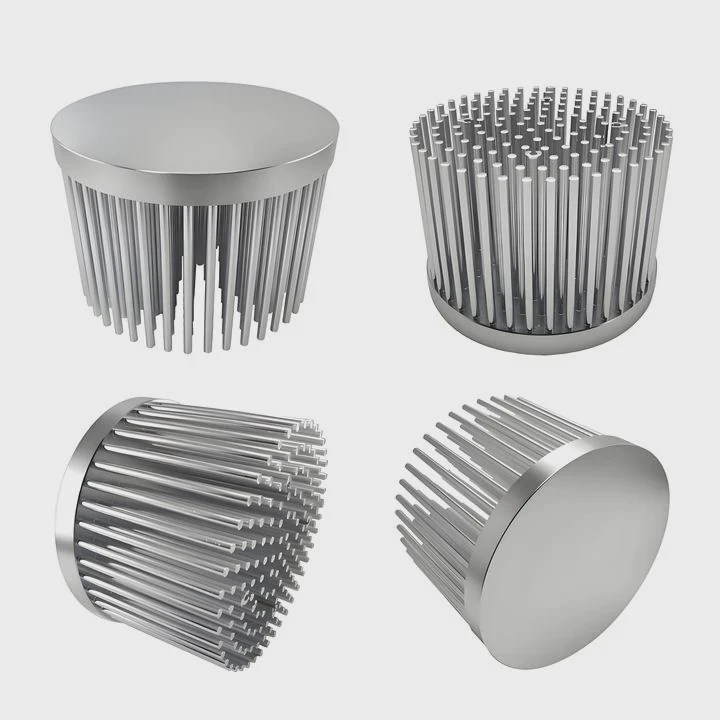
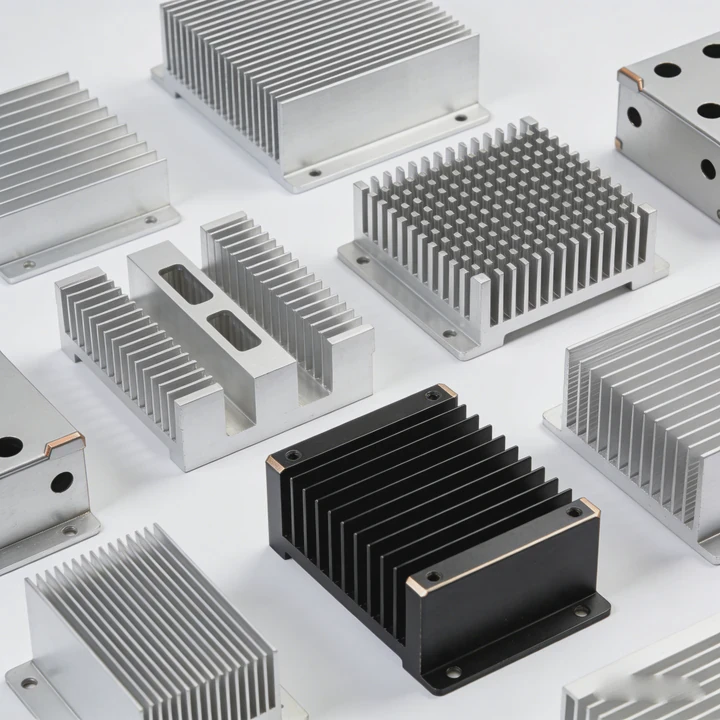
Dust mainly collects between fins, on fan blades, and near the base. It can also settle on nearby components, obstructing airflow and creating hotspots.
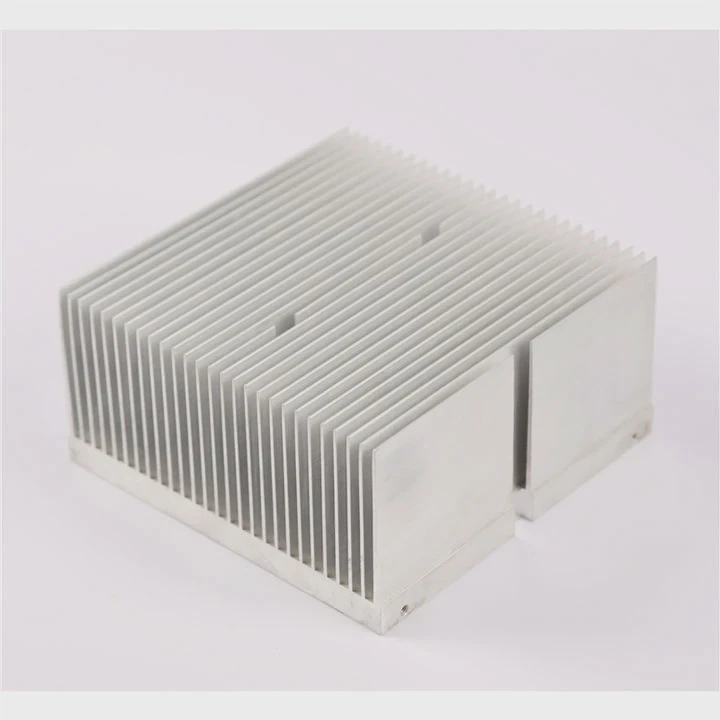
Common dust areas
- Fins: Narrow spaces trap fine dust and hair.
- Fan blades: Dust reduces rotation efficiency and airflow.
- Base of heat sink: Old thermal paste may collect particles.
- Nearby components: Motherboard and RAM can accumulate dust, reducing overall cooling efficiency.
Dust accumulation table
| Location | Dust Type | Effect |
|---|---|---|
| Heat sink fins | Fine dust, pet hair | Reduced airflow, hotspots |
| Fan blades | Dust, lint | Noise increase, slower rotation |
| Heat sink base | Particles, old paste | Thermal conductivity reduced |
| Surrounding PCB | General dust | Impairs airflow, may affect other components |
Cleaning these areas ensures optimal airflow and cooling performance.
Which tools are recommended for PC cleaning?
Proper tools make cleaning efficient and safe. Avoid using metal tools that may damage components or create static discharge.
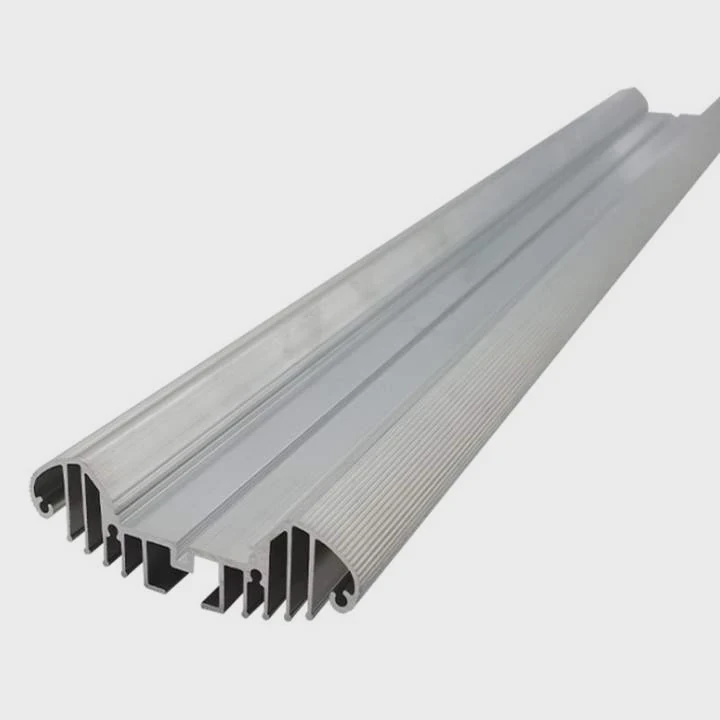
Recommended tools
- Compressed air: Blows away dust from fins and fans without contact.
- Soft brush: Removes stubborn dust without scratching components.
- Microfiber cloth: Wipes surfaces safely.
- Isopropyl alcohol: Cleans thermal paste residue.
- Anti-static wrist strap: Prevents static damage during cleaning.
- Small vacuum (optional): For dust outside sensitive areas.
Tool usage table
| Tool | Purpose | Tip |
|---|---|---|
| Compressed air | Remove loose dust | Hold upright, short bursts |
| Soft brush | Clean tight spaces | Gentle strokes |
| Microfiber cloth | Wipe surfaces | Avoid rough materials |
| Isopropyl alcohol | Remove thermal paste | 90%+ concentration |
| Anti-static wrist strap | Prevent static discharge | Connect to ground |
| Small vacuum (optional) | Collect debris away from case | Avoid touching components directly |
Using proper tools ensures safe and effective cleaning, keeping the PC running cool and quietly.
Conclusion
Cleaning a PC heat sink improves airflow, reduces temperatures, and prevents thermal throttling. Regular maintenance with the right tools restores performance, extends lifespan, and keeps your system running quietly. Safe handling and proper cleaning methods protect sensitive components while maximizing cooling efficiency.